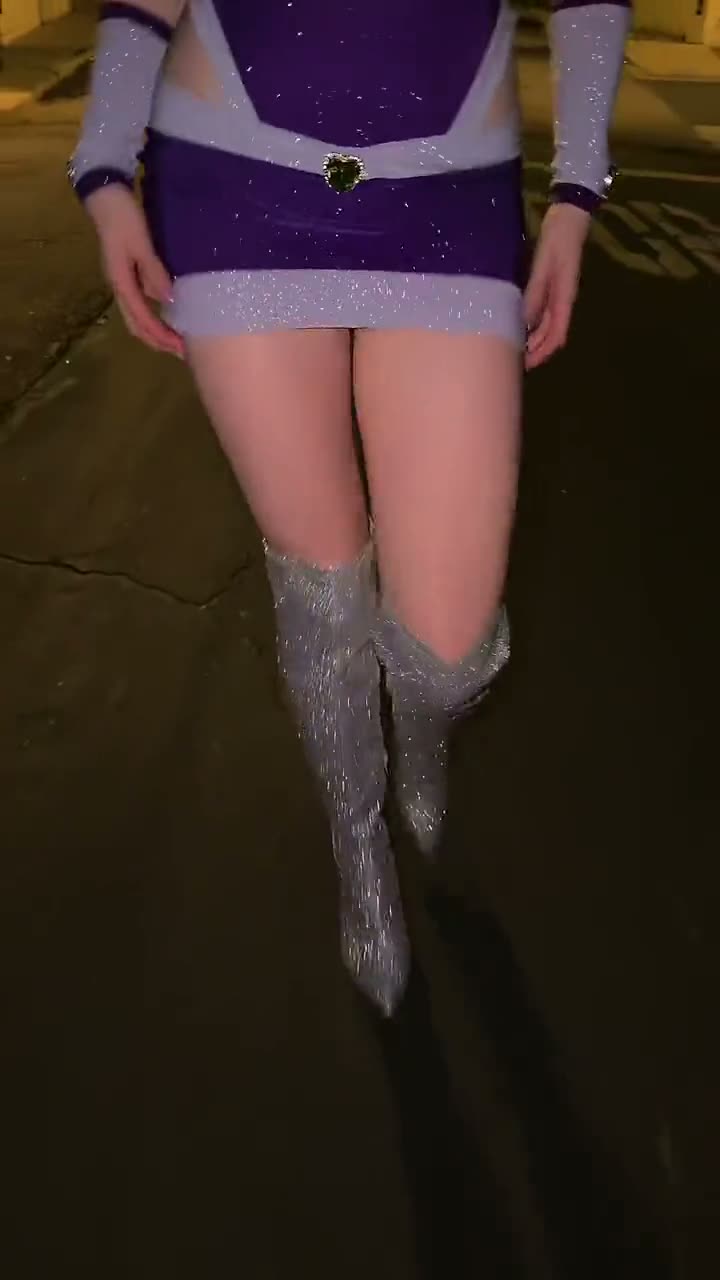
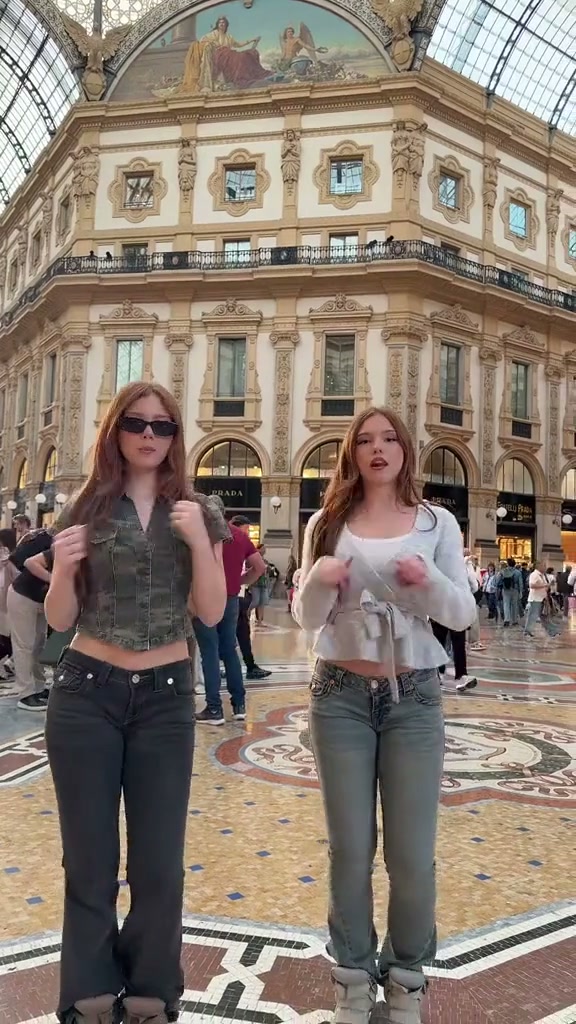
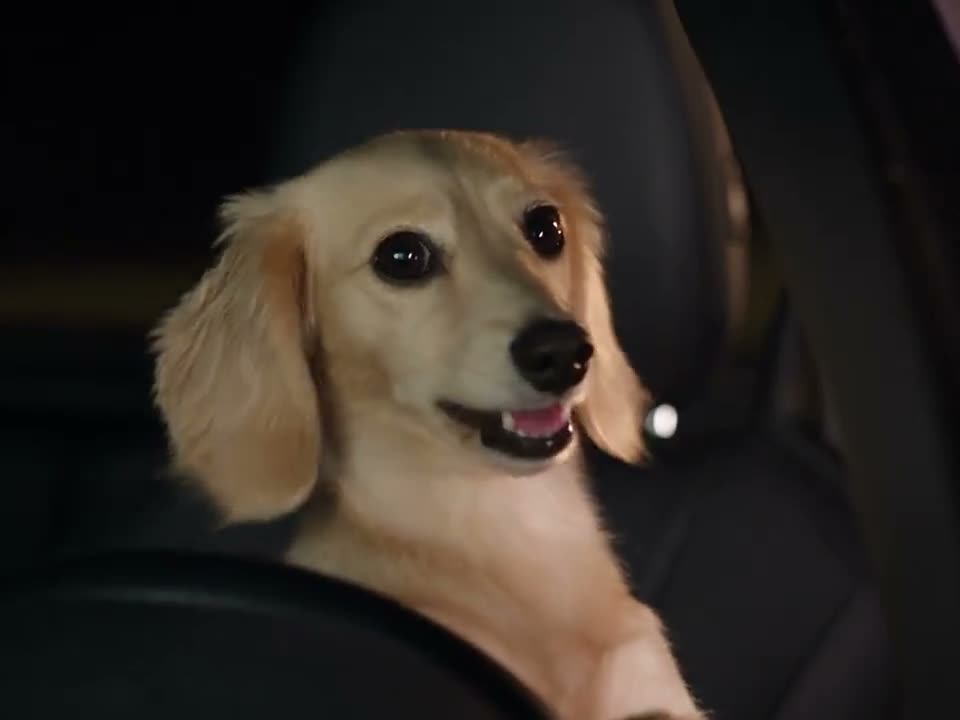
Give your most ordinary photo an extremely overconfident alter ego. The Bottle Kick Challenge turns a serious stance, a stack of bottles, and one committed kick into a little comedy scene. Choose a picture above to make a ten-second, vertical AI video with you or your pet as the star. The template supplies the action; you supply a face your friends will recognize.
The joke starts before the bottle moves
A good bottle kick challenge video gives the audience a moment to see the plan. The subject sizes up the bottles, takes the preparation far too seriously, and rehearses the movement. That small pause is what makes the sudden kick land as a joke. The last beat matters just as much: the character hops away, with noticeably less confidence than they arrived with. It is a compact setup, attempt, and reaction, rather than a demonstration of athletic ability.
The AI versions play with that same structure using people, cats, dogs, and other characters. A dignified pet can be especially funny because the opening expression seems completely at odds with the fuss that follows. With your photo, the joke still revolves around the stacked bottles and the hopping exit. Watch the references for a feel for the buildup and the ending; your own version can have different expressions, timing and camera work.
Start with a photo that leaves room for the action
Choose one clearly visible subject. A standing, full-body photo is the most useful starting point because it shows the face, clothing, legs, and overall proportions together. Leave a little empty space around the head and feet. An image clipped tightly at the ankles gives the generator less information for a scene built around a kick. You do not need to balance bottles beside yourself, wear sports clothes, or take a picture in the middle of a jump.
Check the image at normal phone size before selecting it. Can you distinguish the eyes, the outline of the shoes, and the hands from the background? If not, try a brighter photo with a simpler setting. Large sunglasses, crossed limbs, motion blur, and people crowded together can make the subject harder to interpret. Use a JPG, PNG, or WebP file up to 10 MB, and choose a photo you have permission to upload.
Make a clip with the Bottle Kick Challenge AI Video Generator
Start with the photo you would actually send to a friend: one person or pet, easy to recognize, with room around their feet. Choose Person or Pet above, add the image, and check the little preview before you go any further. You can change your mind and pick a different photo without spending credits. The bottle stack and the kick are already part of the template, so you can leave the props in the cupboard and skip writing a prompt.
Sign in when you are ready, check the price beside the button, then make your video. You get ten seconds in vertical 9:16, with the wind-up, kick and hopping exit in one short scene. It can take a few minutes, so give it time. If you lose your connection, come back and use Refresh status to find out how your video is doing. When it is ready, watch all the way through: the embarrassed little exit is half the joke.
Let your pet keep its own personality
For a pet version, use one animal with a clearly visible face and body. A cat sitting upright or a dog standing against a plain background gives a better sense of its shape than a tiny face hidden in a blanket. Distinctive ears, a patch of fur, and the animal's usual expression make the resulting joke feel personal. There is no need to dress the animal up or persuade it to perform anything for the camera.
The movement is fictional. An AI pet may stand and kick in a way the real animal never would, and paws or fur can change during fast motion. That is a reason to review the result carefully, especially at the moment of contact. If a busy coat pattern becomes muddled, try a clearer image in softer light. The goal is a recognizable little character with an absurdly serious mission, not a realistic training video.
Three moments worth checking in the preview
First, pause near the beginning. Make sure there is one intended subject and that the face, outfit, or fur markings still look coherent. Next, watch the kick at normal speed. You should be able to follow the moving leg and understand what happened to the bottles without replaying the scene several times. Check for a disappearing bottle, a sliding supporting foot, or an extra limb that distracts from the joke.
Finally, watch the closing reaction. A readable hop or surprised recovery gives the scene a finish; an abrupt cutoff can make it feel unfinished. AI generation does not guarantee a perfect likeness or flawless physics on every attempt. If you decide to try again, change something useful about the source photo, such as the crop or background, instead of submitting the same picture several times without inspecting it. Another generation uses credits again.
Give the clip a caption, not an explanation
A short caption can establish the character before the kick. Think of a friend who announces that a job will take two minutes, or a pet that treats a delivery box as its territory. Keep the line brief enough to read during the preparation. Let the bottles and the reaction deliver the rest. Covering the feet with a large caption, sticker, or reaction window hides the movement that makes this particular template work.
Save the finished file before adding captions in your preferred editor or publishing app. Watch once with sound and once without it, because the setup should still make sense in a muted feed. If you add music, select audio you are entitled to use on that platform. Your video has generated sound effects; add your chosen song afterwards. When sharing, describe the clip as AI-generated so the fictional action is clear.
What your 20 credits cover
You can watch both references and try different photos for free. Making a video costs 20 credits at the current price; check the amount next to the button before you start. Sign in with enough credits, choose the photo you want, and make one version first. You are paying to create that video, so swapping the picture in the upload box does not spend anything. Asking for another version does, even if you use exactly the same photo.
If generation fails or is canceled, your credits come back automatically. A video that is still being made simply needs more time: use Refresh status to check on it instead of pressing generate again. Once you have a finished clip, decide whether the joke works before paying for another take. Look at the feet, the flying bottles and the pause at the end. If something bothers you, a clearer photo or a looser crop gives your next attempt a useful change to work with.
Keep the version you want to share
Found a version that makes you laugh? Save it to your phone before you start adding captions. Your account keeps generated videos for 30 days, and a temporary download link can expire sooner, so it is worth downloading your favorite straight away. Give the file a name you will recognize later. Keeping one clean copy makes it easy to try a family-chat caption today and a different joke tomorrow without paying to make the same scene again.
Use your own photo or ask the person pictured before uploading theirs. Your photo goes to the video provider to make the clip; we do not keep it on our servers. A draft can stay in this browser for up to an hour to help you finish signing in. Before sharing the video, play it once at normal phone size. Can you follow the kick, and does the final hop have time to register? Keep captions off the feet and bottle stack, and tell viewers the scene was made with AI.